
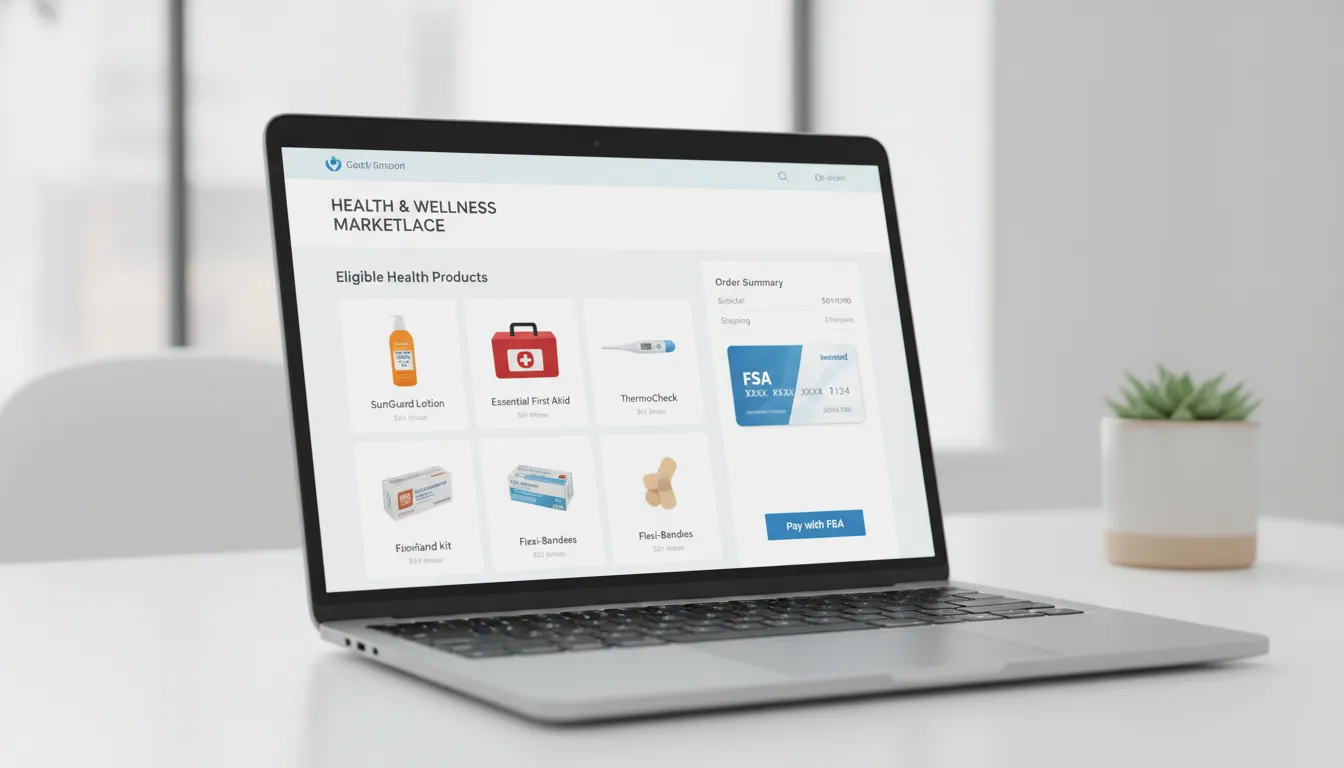
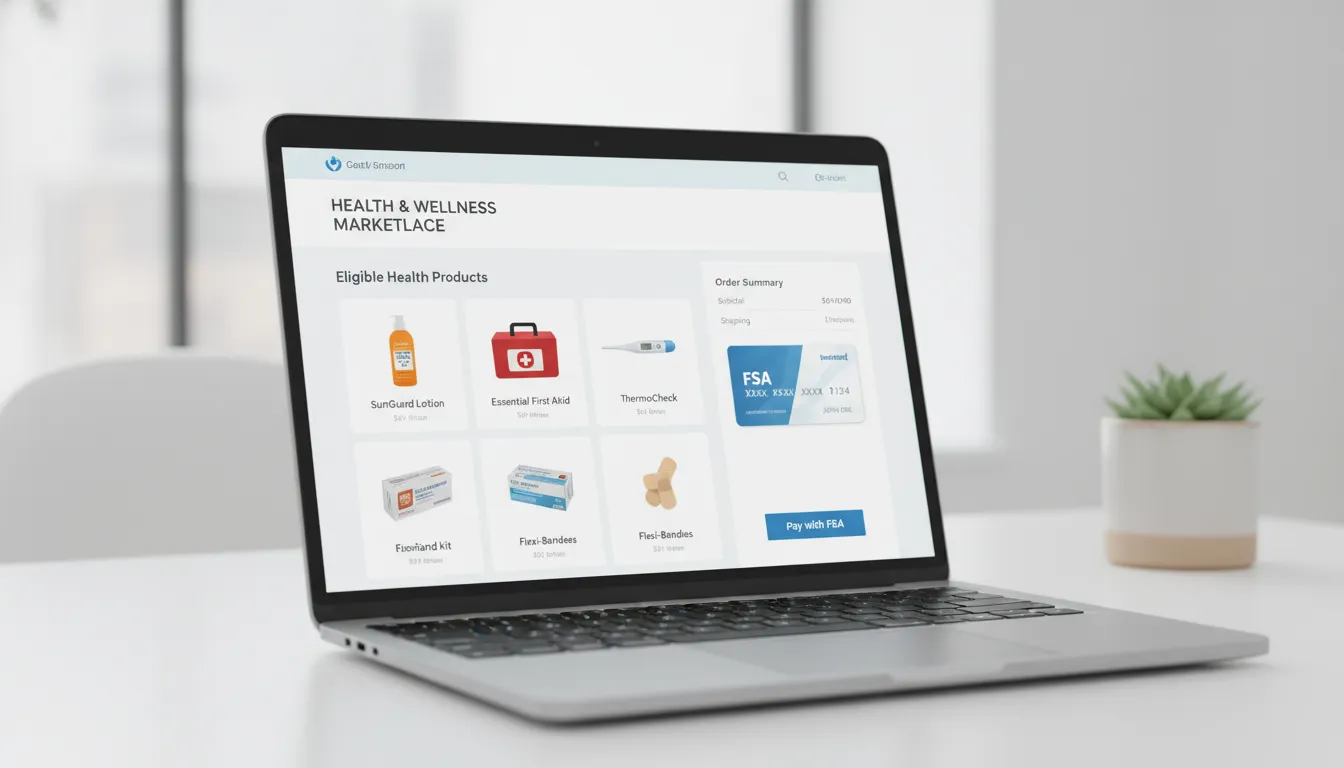
Yes, you can use an FSA card on Amazon for items Amazon marks as FSA or HSA eligible, as long as your plan allows the purchase and the card details match your benefits account. The cleanest path is to add the card to Amazon Wallet, shop clearly labeled eligible products, keep eligible items in a separate order, and save an itemized invoice after purchase.
Quick takeaway: most Amazon FSA card checkout problems happen because the item is not coded as eligible, the cart mixes eligible and ineligible products, the billing address does not match, the card is inactive, the balance is too low, or the plan has a stricter rule than Amazon’s label.
Want a simpler way to use your FSA and HSA dollars? Get daylii updates as we build smarter eligibility, shopping, receipt, and reimbursement tools for everyday healthcare spending.
Amazon can be convenient for FSA shopping because many qualifying products are labeled in the shopping experience. Still, the checkout flow is not always obvious. Some products are eligible only with documentation. Some items look medical but do not qualify under your plan. Some cards fail even when the product seems right.
This guide explains how to add your card, shop Amazon’s FSA-eligible catalog, troubleshoot declined payments, understand mixed-cart issues, and decide when reimbursement is safer than another checkout attempt.
Quick Answer: Can You Use an FSA Card on Amazon?
Amazon accepts FSA and HSA cards for eligible products with a US billing address. You can add the card to Amazon Wallet and select it at checkout when eligible items are in your cart. The card should only be charged for qualifying healthcare expenses, and your benefits administrator can still apply plan-specific rules.
If Amazon does not show your FSA card, declines the payment, or removes the card at checkout, do not assume the card is useless. Check the eligibility label, billing address, available balance, seller or SKU variation, and plan restrictions before retrying. If the purchase may still qualify, paying another way and filing for FSA reimbursement can be the better path.
How to Add Your FSA Card to Amazon
Adding the card correctly lowers the chance of a preventable decline. Treat the card like a restricted debit card, not a regular credit card that can pay for anything in your cart.
Add the card in Amazon Wallet
Start in Amazon Wallet and add your FSA card as a payment method. Enter the card number, expiration date, security code, name, and billing details exactly as they appear in your benefits account. If Amazon asks you to identify the card type, follow the prompts for an FSA or HSA payment card when available.
After the card is saved, it may appear as a payment option only when Amazon detects eligible products in the order. If you add the card successfully but do not see it during checkout, the issue may be with the cart, the product listing, or the order type.
Confirm the billing address matches your benefits card
A billing address mismatch is one of the easiest Amazon FSA card problems to miss. Your Amazon billing address should match what your FSA administrator has on file. If you moved, recently received a new card, or changed employers, verify the address before placing the order.
Do not keep retrying the same checkout if the address is wrong. Update the billing information, confirm the card is active, and then try an eligible-only order.
Check that the card appears before checkout
Before placing the order, confirm that the FSA card appears as an available payment method and that Amazon is applying it only to eligible products. If the card disappears when you move to checkout, review the cart for ineligible products, seller changes, substitutions, or product variations that may not be coded as eligible.
How to Shop for FSA-Eligible Items on Amazon
The best way to avoid checkout problems is to build the cart around products Amazon already recognizes as eligible. This does not replace your plan rules, but it gives the card a cleaner signal at checkout.
Use Amazon’s FSA/HSA eligible filters
Use Amazon’s FSA/HSA eligible filters or eligible-products storefront when shopping. These filters help surface items such as first aid supplies, thermometers, blood pressure monitors, menstrual care products, diabetes supplies, contact lens solution, sunscreen, and certain over the counter medicines when allowed by current rules and your plan.
For a broader search workflow, read daylii’s guide on how to find FSA items. If you are comparing HSA-specific shopping options, see the guide to Amazon HSA eligible products.
Review each product page before you buy
Look for an FSA or HSA eligible label on the product detail page before adding the item to your cart. The label is a strong shopping signal, but it is not a guarantee for every plan. Some administrators may require a prescription, a letter of medical necessity, or additional documentation for certain products.
Be especially careful with products that could be used for general wellness as well as medical care. When an item sits near the line, your plan administrator is the final source for whether the expense qualifies.
Watch for seller, variation, and SKU changes
Amazon product listings can change by seller, size, bundle, color, variation, or SKU. One version of a product may be coded as FSA eligible while another version is not. Before checkout, open the exact item in your cart and confirm that the selected version still carries the eligibility label.
If a card worked for a similar item but declines on a new listing, the product data may not match. Try a clearly labeled version or buy through the eligible-products filter rather than a general search result.
How Amazon Checkout Works With an FSA Card
At checkout, Amazon has to connect the payment card, the product eligibility data, the seller or order type, and the total eligible amount. Problems usually appear when one of those pieces does not line up.
Eligible-only carts are the cleanest path
An eligible-only cart gives the FSA card the simplest job. Add only products marked FSA or HSA eligible, select the FSA card at checkout, review the payment allocation, and place the order only after the eligible charge looks correct.
This approach also creates cleaner receipts. If your administrator asks for proof later, it is easier to document a dedicated eligible order than a mixed order with household products and healthcare products in the same invoice.
Mixed carts can create payment problems
A mixed cart includes both eligible and ineligible products. Your FSA card is intended to pay only for eligible expenses, so Amazon may need another payment method for the rest of the order. That allocation can become confusing, especially if the order has multiple sellers, shipping groups, subscriptions, promotions, or gift-card credits.
If checkout looks unclear, split the order. Place FSA-eligible products in one order and regular household products in another. This is slower, but it reduces decline risk and makes documentation easier.
Gift card and backup payment rules can vary by order type
Amazon supports some split payment situations, such as using an Amazon gift card with one accepted credit or debit card. It does not generally support splitting payment across multiple credit or debit cards. Amazon Pharmacy can also have different payment rules than the main retail checkout, including limits on splitting pharmacy payment between an HSA/FSA card and another method.
Because payment rules can vary by order type, review the checkout screen before placing the order. If Amazon will not allocate payment the way you need, use a separate eligible-only order or consider reimbursement.
Why Your FSA Card Is Not Working on Amazon
An Amazon FSA card decline does not always mean the product is never eligible. It means Amazon, the card processor, or your plan could not approve that transaction at that moment. The reasons below are the most common.
The item is not coded as FSA eligible
If the product does not carry an FSA or HSA eligible label, Amazon may not allow your FSA card to pay for it. Sometimes the item is not eligible. Other times, the catalog data is incomplete or the selected variation is not mapped correctly.
Your FSA card is not active or has the wrong billing address
Expired, inactive, newly issued, or replaced cards can fail at checkout. A billing address mismatch can also trigger a decline. Confirm the card status and billing address with your benefits account before retrying.
Your balance is too low for the eligible portion
FSA cards can decline when the available balance is lower than the eligible amount being charged. Check your balance, then either reduce the eligible order amount or use another payment method and file for reimbursement if your plan allows it.
Your plan has stricter rules than Amazon’s label
Amazon’s label is not the same as your plan administrator’s final decision. Some plans require extra documentation, exclude certain categories, or apply rules that are stricter than a retail eligibility badge. When your plan and Amazon seem to disagree, ask the administrator before relying on the card.
Amazon Pharmacy follows different payment rules
Amazon Pharmacy orders can follow separate payment rules from the main Amazon retail checkout. If you are buying pharmacy items, review Amazon Pharmacy’s payment guidance and your plan rules before assuming the same split-payment options apply.
If the problem is not Amazon-specific, daylii’s broader FSA card not working guide covers common card, merchant, and administrator issues.
What to Do When Amazon Declines Your FSA Card
When the card declines, slow down and isolate the cause. Repeating the same checkout without changing anything can create frustration and may not fix the underlying issue.
Remove ineligible items and retry
First, remove anything that is not clearly marked FSA or HSA eligible. Then retry with an eligible-only cart. If the card works, the original problem was likely a mixed-cart or payment-allocation issue.
Try a separate eligible-only order
If the cart has multiple sellers, product variations, bundles, subscriptions, or shipping groups, create a separate order with only the eligible item you want. This makes it easier to see whether Amazon accepts the FSA card for that exact product.
Use another payment method and file for reimbursement when appropriate
If you believe the item is eligible but Amazon will not accept the card, reimbursement may be safer than another failed checkout. Pay with another method only if you are comfortable following your plan’s claim process, then submit the itemized invoice and any required documentation.
For step-by-step claim guidance, use daylii’s FSA reimbursement process guide. You can also review the general FSA card declined troubleshooting page for decline causes outside Amazon.
Save your Amazon invoice and item details
Keep an itemized Amazon invoice whether the card works or you file for reimbursement. Save the merchant name, order date, product name, itemized price, payment method, amount charged to the FSA card, and any eligibility label or product detail that supports the purchase. If the item requires a prescription or letter of medical necessity, keep that documentation with the invoice.
FSA Card on Amazon Checklist Before You Place the Order
- Use Amazon’s FSA/HSA eligible filters or storefront.
- Confirm the exact product variation is marked eligible.
- Keep eligible and ineligible items in separate orders when payment allocation is unclear.
- Make sure the FSA card is active and not expired.
- Match the Amazon billing address to your benefits card address.
- Check the available FSA balance before checkout.
- Review the payment method and eligible amount before placing the order.
- Save the itemized Amazon invoice after purchase.
- Ask your administrator about items that may need a prescription or letter of medical necessity.
How daylii Helps Make FSA/HSA Shopping Easier
daylii is a pre-launch, AI-native platform built to make FSA and HSA spending easier to understand and manage. Instead of forcing people to guess which products qualify, daylii is building tools that connect eligibility, shopping, receipts, and reimbursement in one smarter experience.
dayliiMarketplace is designed to check products at the SKU level so users can find eligible items with less guesswork. dayliiReimburse is being built to parse receipts, verify eligibility, and help automate claims. dayliiPulse is planned to help users track balances, expiration timing, and spending opportunities before funds go unused.
That future matters because Amazon can be a useful place to buy eligible products, but shoppers still have to manage labels, plan rules, mixed carts, and receipts on their own. daylii’s goal is to make that process clearer before, during, and after purchase, including future experiences around same-day FSA delivery and smarter eligible-product discovery.
Frequently Asked Questions
Can I use my FSA card for anything on Amazon?
No. You can use an FSA card only for eligible healthcare expenses that Amazon can process as eligible and your plan allows. Regular household goods, general wellness products, and ineligible items cannot be charged to the card.
Why is my FSA card not showing up on Amazon?
Your FSA card may not show up if the cart does not contain eligible products, the selected product variation is not coded as eligible, the card information is incomplete, or the order type does not support that payment method. Confirm the card in Amazon Wallet and try an eligible-only cart.
Why does Amazon say an item is FSA eligible but my card declines?
The card can still decline if your plan has stricter rules, the card balance is too low, the billing address is wrong, the card is inactive, or the selected seller or SKU data does not match the eligibility signal. Check your plan before assuming the expense will be approved.
Can I split an Amazon order between an FSA card and another card?
Amazon supports some split payment situations, such as one accepted credit or debit card plus an Amazon gift card. It does not generally support splitting payment among multiple credit or debit cards. For mixed carts, a separate eligible-only order is usually cleaner.
Do I need a receipt for Amazon FSA purchases?
Yes. Keep an itemized Amazon invoice even when the FSA card works at checkout. Your administrator may ask for proof of the product, amount, merchant, payment date, and eligibility. Some purchases may also require a prescription or letter of medical necessity.
Can I use an HSA card on Amazon too?
Yes, Amazon accepts HSA cards for eligible items as well. The same practical rules apply: shop eligible products, use accurate billing details, save itemized records, and confirm plan-specific questions when an item is uncertain.
Bottom Line
You can use an FSA card on Amazon without checkout problems when the product, card, balance, billing address, and plan rules all line up. Add the card in Amazon Wallet, use eligible-product filters, keep eligible items separate, review payment before placing the order, and save the invoice.
If Amazon declines a purchase you believe should qualify, do not keep retrying the same mixed cart. Isolate the eligible item, confirm the card details, check your plan, and use reimbursement when that creates a cleaner path.
Get daylii updates before launch and learn how AI-powered FSA/HSA shopping can make benefit spending simpler.